Import supported patient and appointment context, build a structured progress note from the session, review and correct it, then send it to Cliniko or Nookal. Integration with other Practice Management Systems is planned.
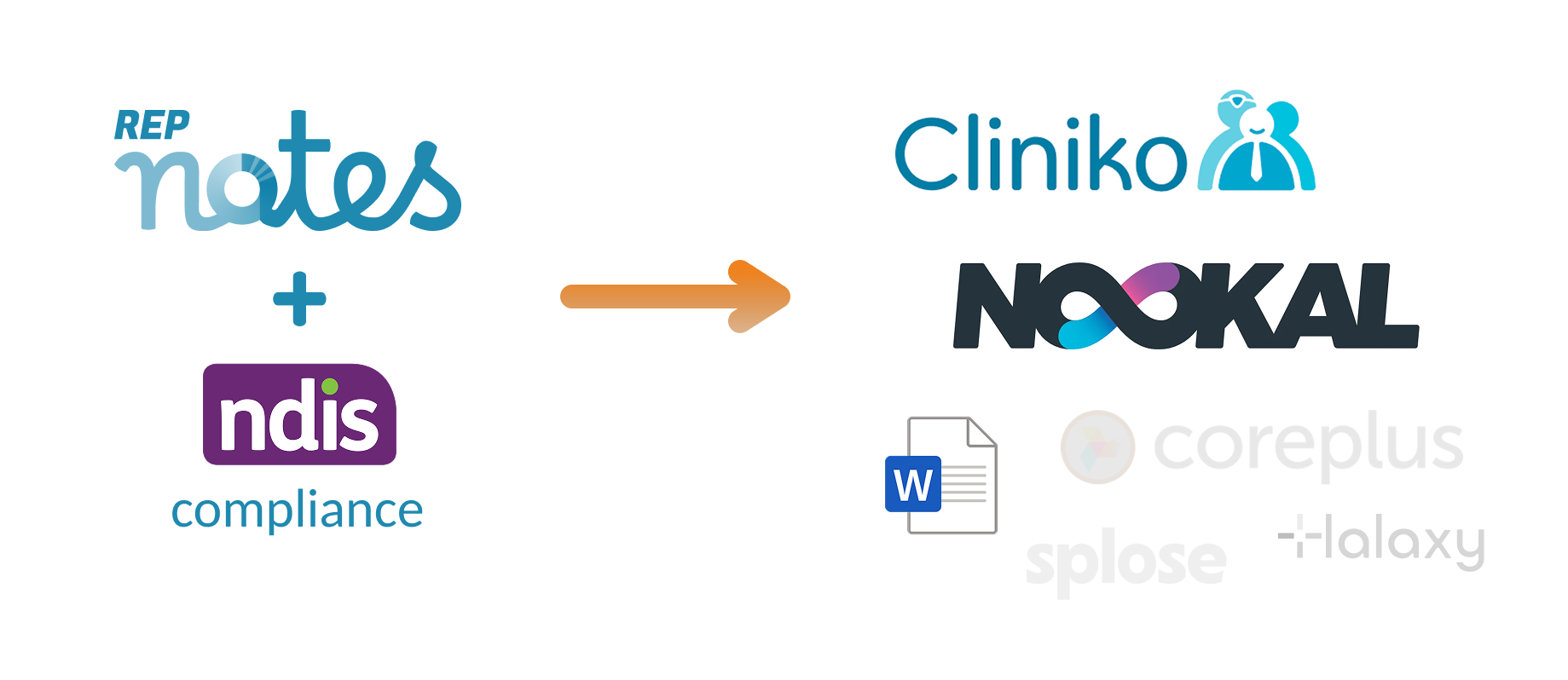
Repnotes connects with supported Practice Management Software. Import supported patient, practitioner and appointment context, use session evidence to build a structured note, review and correct it, then send the approved note into the patient record.
Your API details are encrypted during transit and at rest. Clinics remain responsible for reviewing notes and meeting their own privacy obligations.
 View Nookal Setup
With Nookal, Repnotes can add a clinician-reviewed progress note to the patient's Clinical Notes.
Press the Generate API Key button to create a new API key.
Select your location, provide access to Clinical Notes and ensure status is checked.
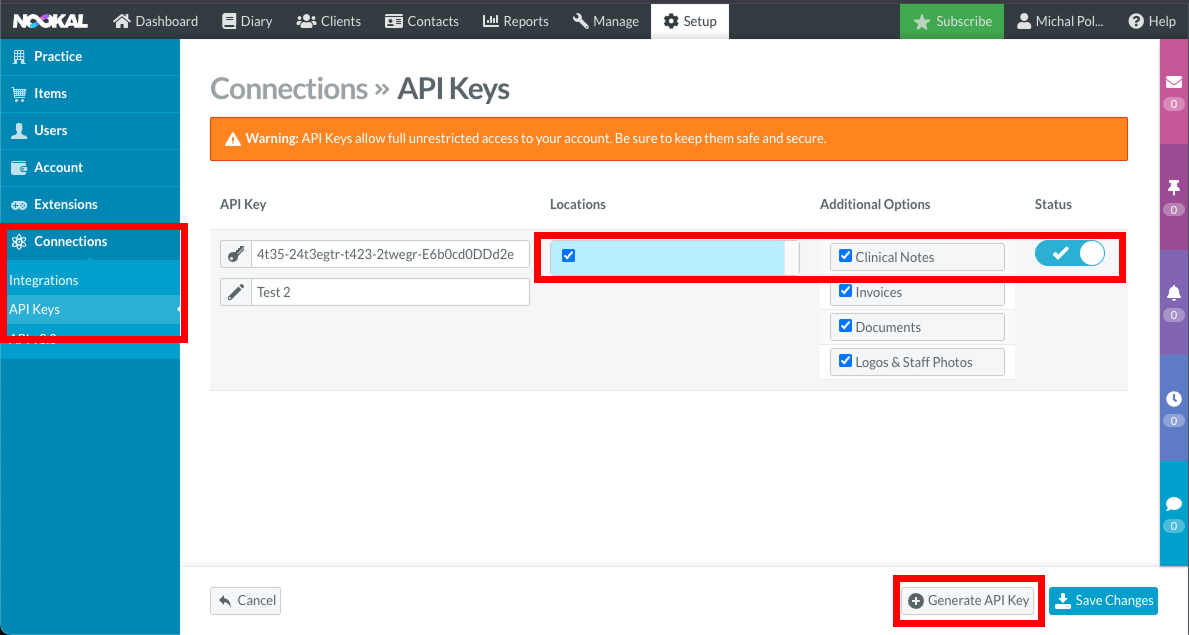
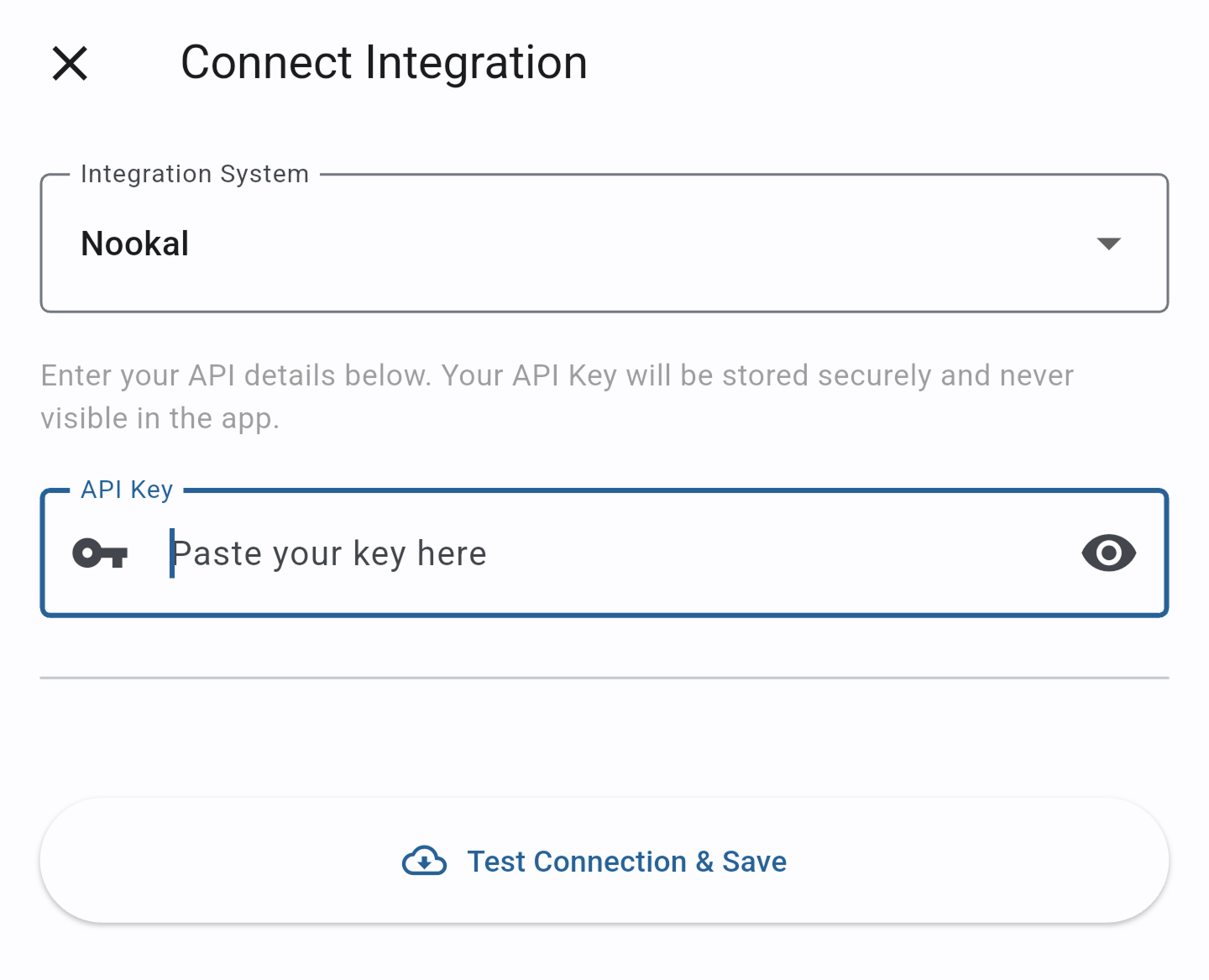
Once this API Key is safely stored and available to be copied, paste it into Repnotes Integration Settings using the Clinic Portal or the Repnotes App.
Press Test Connection & Save to securely connect Repnotes to Nookal.
Web - In the Clinic Portal
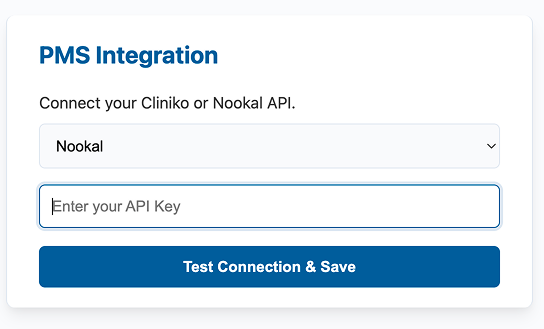
App - Top left menu > Manage Integration
 View Cliniko Setup
Cliniko requires a Treatment Note Template for the Repnotes workflow.
First, add a Repnotes treatment note template. In Cliniko, go to Settings > Treatment note templates.
From here, you can import the Repnotes template in JSON format (right-click and choose Save Link As).
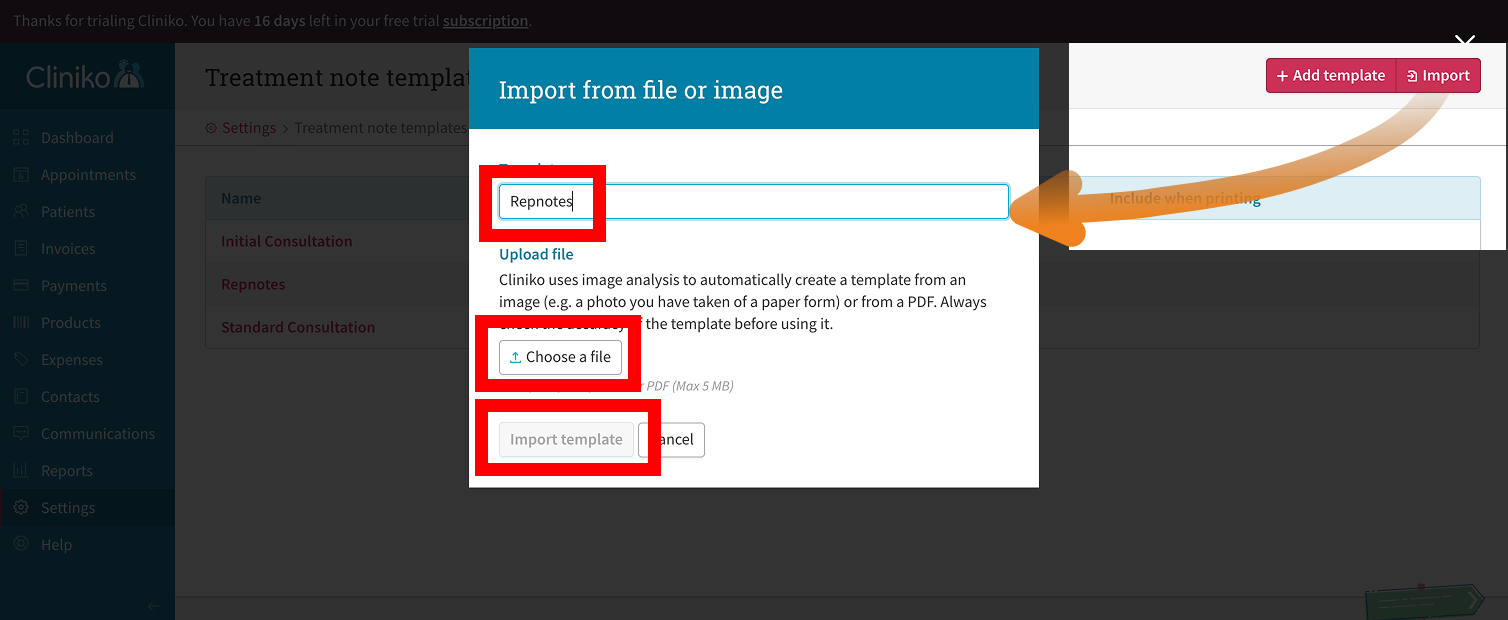
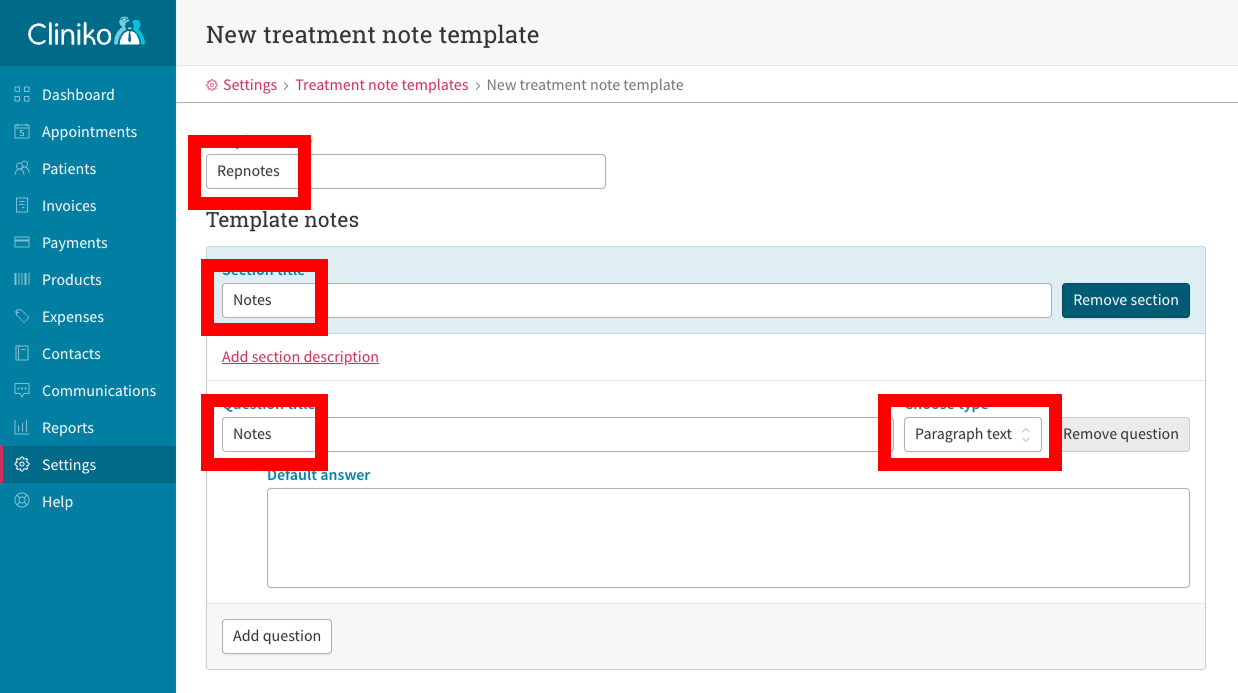
Alternatively you can create a new Cliniko "Treatment Note Template", just make sure the highlighted details are the same as these:
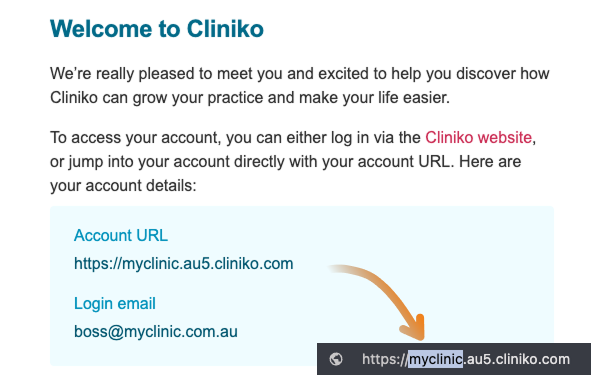
For example: If my clinic's name is "My Clinic", your Cliniko web address will look something like http://myclinic.au5.cliniko.com and your subdomain is "myclinic".
Check and remember your Cliniko subdomain. You will need to use it to complete Repnotes integration.
You would have also received this information in your "Welcome" email from Cliniko.
Click on My Info > Manage API keys and enter the name of this new key and press Create API key
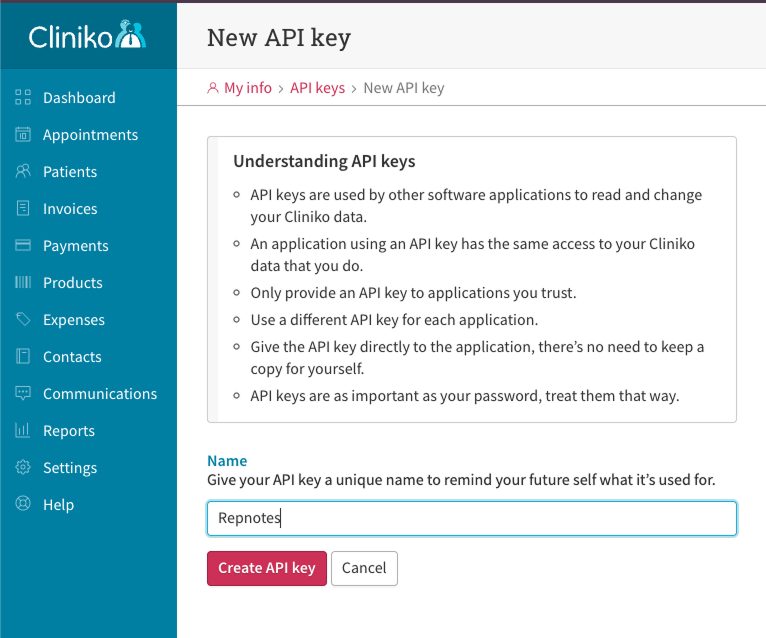
When you create a new API Key in Cliniko, they provide you with only one chance to copy it for safekeeping.
Once this API Key is safely stored and available, paste it into Repnotes Integration Settings:
Press Test Connection & Save to connect your clinic with Cliniko.
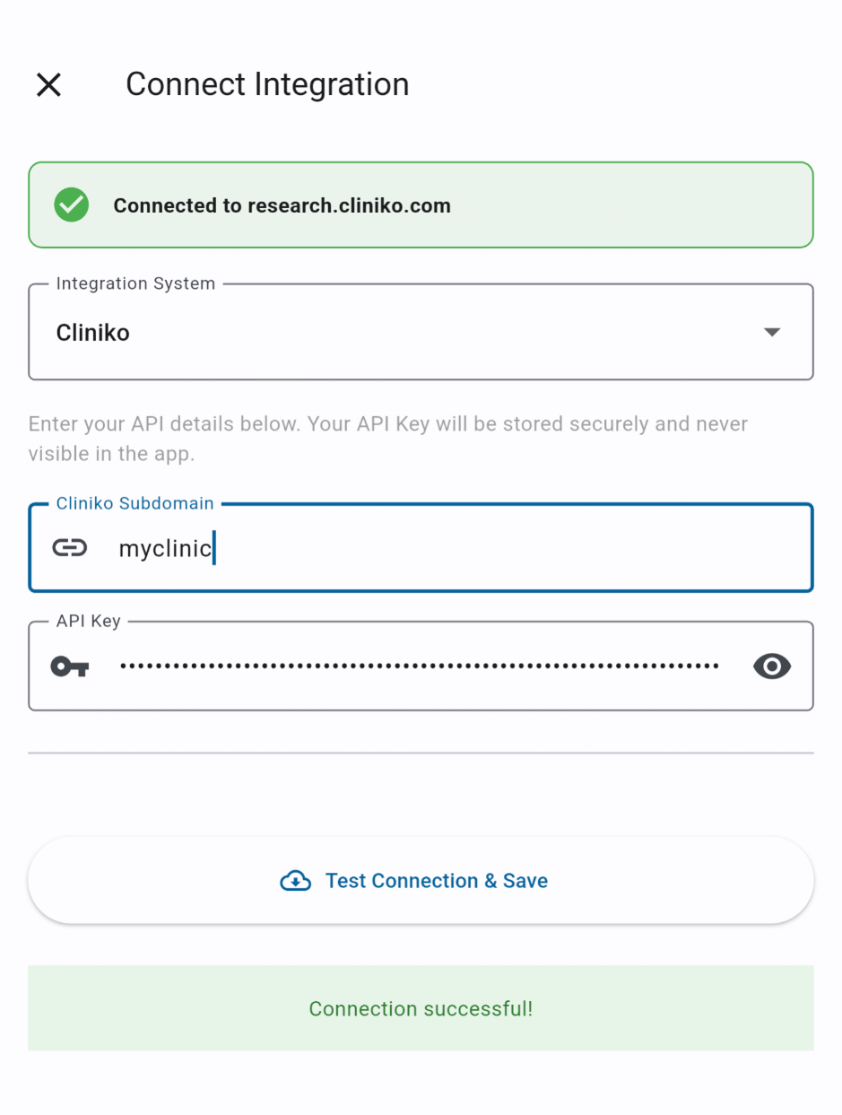
Once this API Key is safely stored and available to be copied, paste it into Repnotes Integration Settings using the Clinic Portal or the Repnotes App.
Press Test Connection & Save to connect Repnotes to Cliniko.
Web - In the Clinic Portal
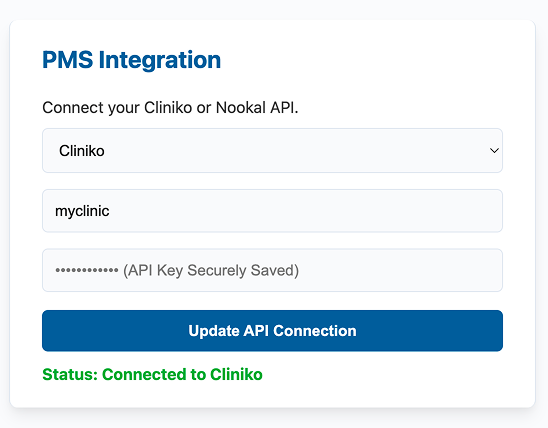
App - Top left menu > Manage Integration
View Nookal Integration
With Nookal, Repnotes can add a clinician-reviewed progress note to the patient's Clinical Notes.
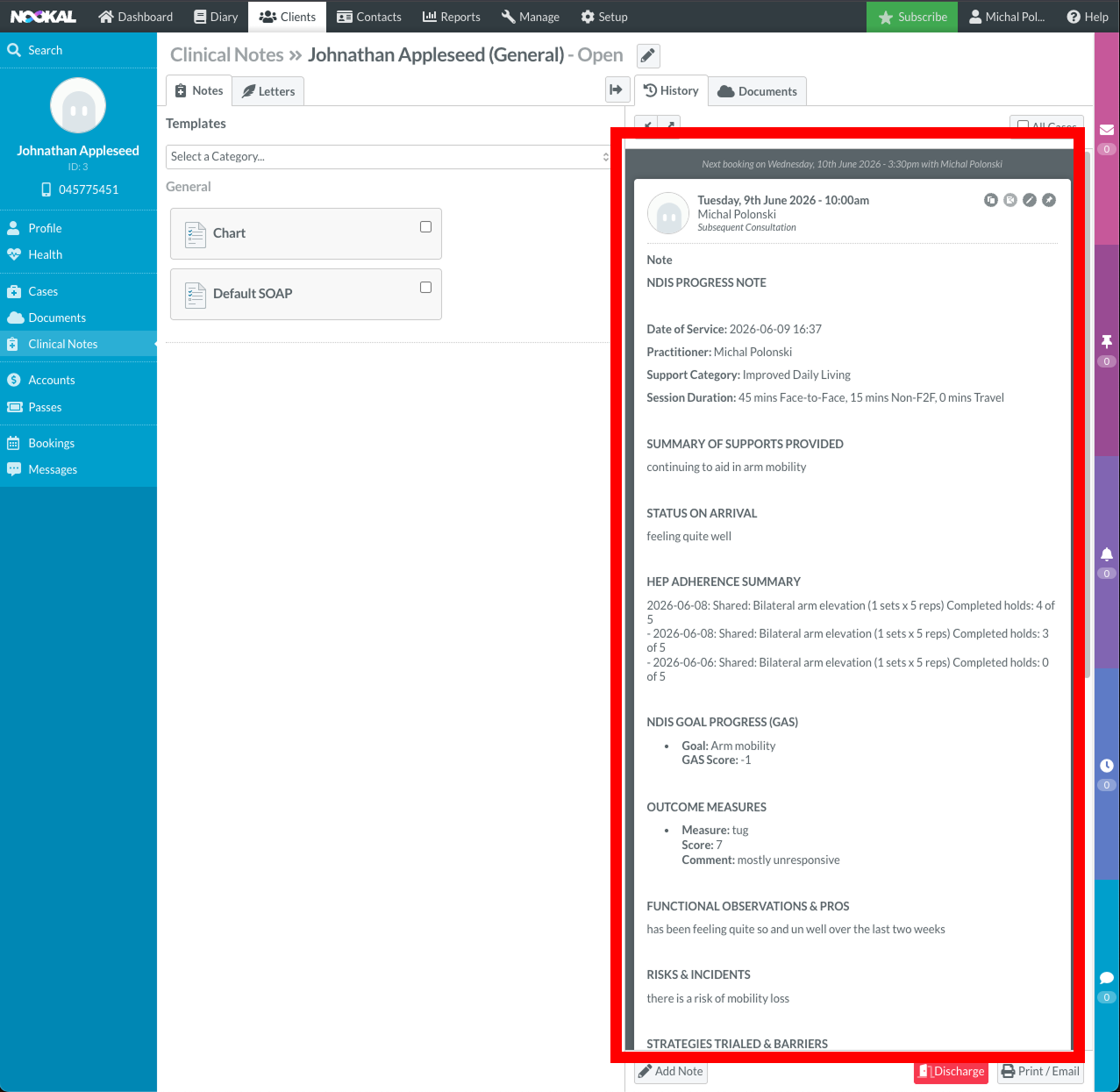
Open the appointment in your Nookal diary, then select Clinical Notes to view the Repnotes entry.
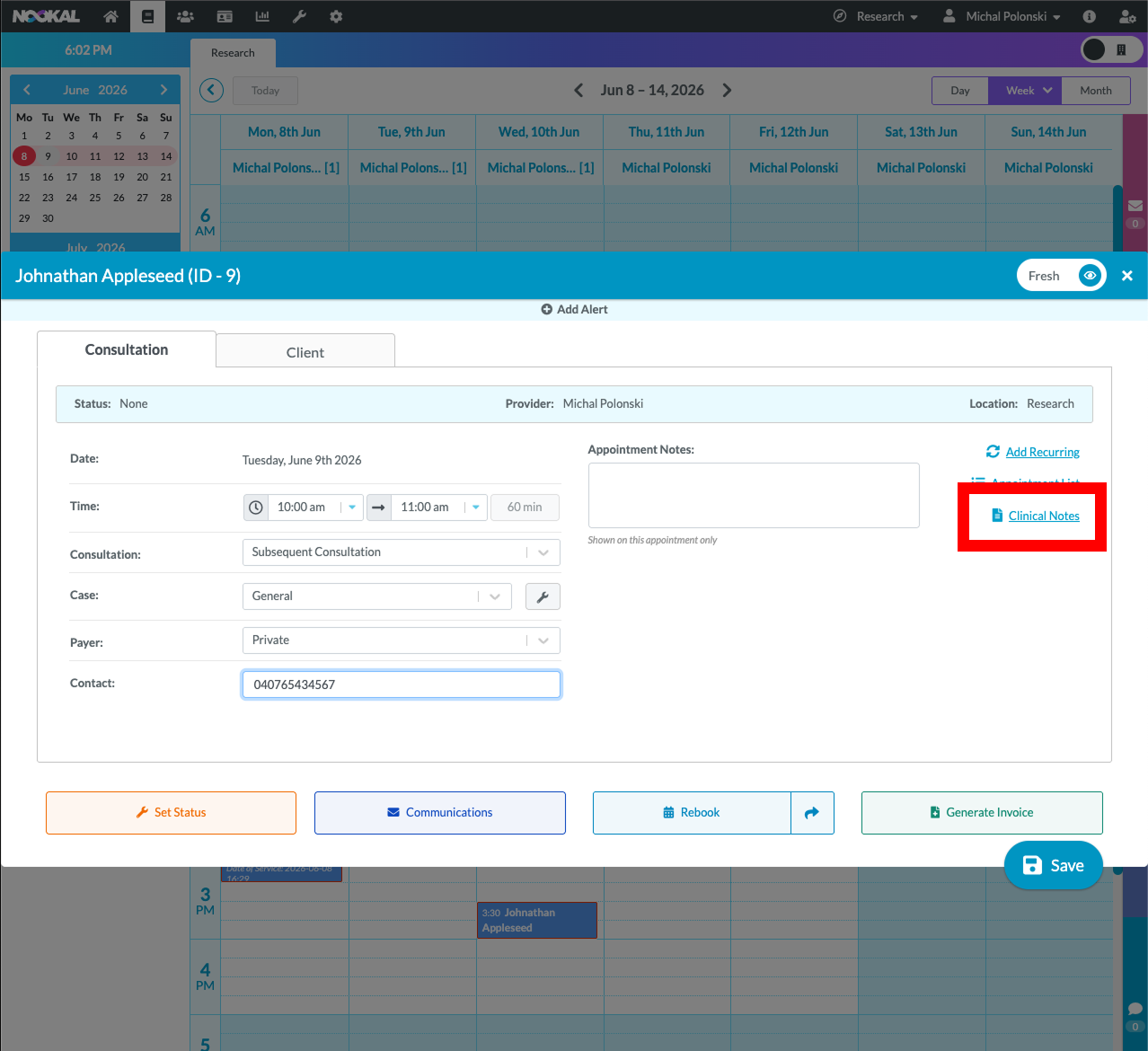
When you open Clinical Notes, you will see your clinician-reviewed NDIS-related note. Once the integration is configured, Repnotes-generated appointment notes will appear in the selected appointment's Clinical Notes:
 View Cliniko Integration
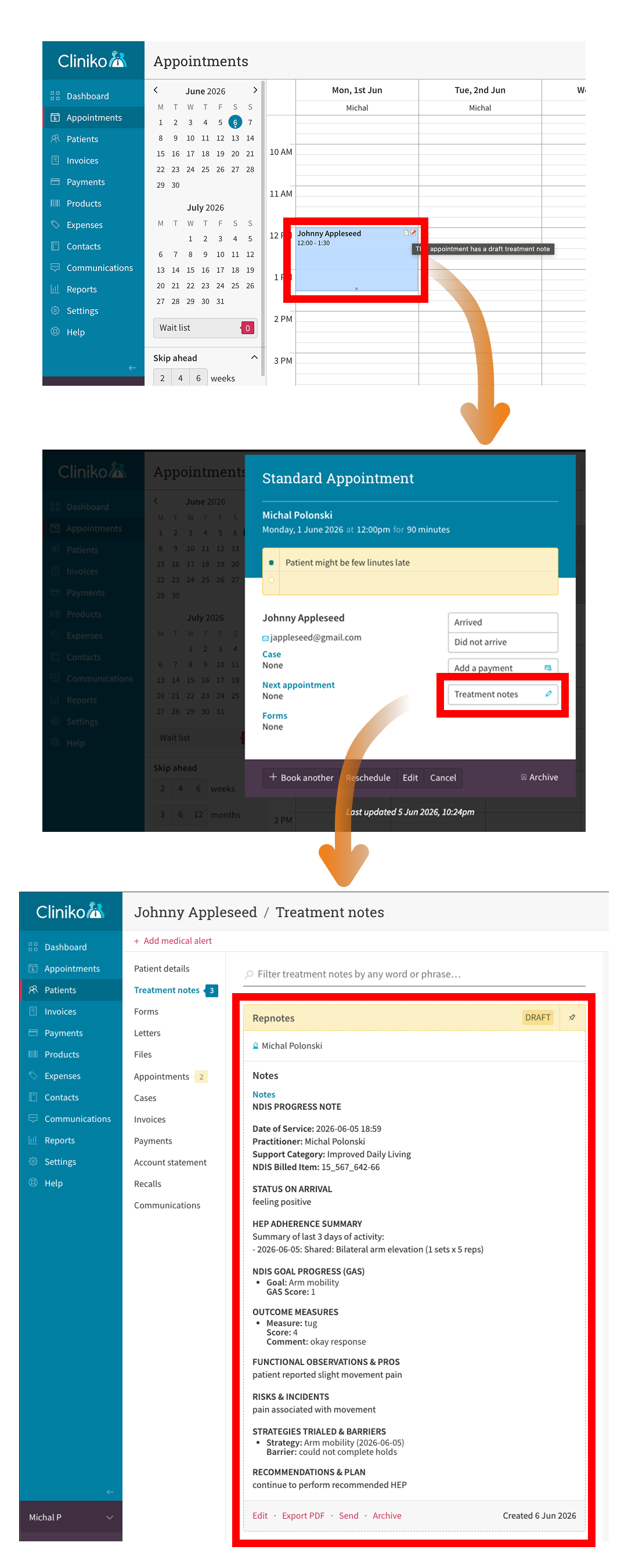
In Cliniko, Repnotes sends the reviewed progress note to the patient's treatment notes section. When you open a patient's file and navigate to Treatment Notes, you'll see a structured HTML note mapped into your existing NDIS template, ready for review.
Open the appointment's treatment notes to review the note created in Repnotes. The clinician remains responsible for checking and approving its content.
If your clinic uses Halaxy, Coreplus, or another system, you can still use Repnotes. Export the reviewed, structured progress note as a DOC file and drag-and-drop it into your patient's file.
Here is an example of such a .doc file. These details may be different in the file produced by the app.